
The Quant’s First Steps: Setting Up Your Python Environment

Welcome to the first post in our series, Quant Quest: A Python-Powered Journey into Financial Analysis! If you’re an aspiring quant with a grasp of the basics, you’re in the right place. Over this series, I’ll be your guide, mentoring you through the practical, real-world application of Python in quantitative finance. We’ll skip the dense theory and focus on the ‘why’ behind the code.
Today, our goal is simple but crucial: to set up a powerful, professional Python environment. By the end of this article, you’ll have the exact same setup used by quants at top-tier firms and be ready to start your journey into financial analysis.
Why Python is the Lingua Franca of Modern Finance
Before we install anything, let’s understand why Python has become the dominant language in quantitative finance. While languages like C++ are still used for high-frequency trading (HFT) where every nano-second counts, Python’s strengths make it the undisputed champion for research, analysis, and strategy development.
A Rich Ecosystem: Python’s greatest asset is its vast collection of open-source libraries like NumPy, Pandas, and Scikit-learn. These are battle-tested tools that provide pre-built, highly-optimized functions for nearly any quantitative task you can imagine.
Ease of Learning and Readability: Python’s syntax is clean and intuitive. This allows you, the subject matter expert, to focus on the financial logic, not on wrestling with complex code.
Massive Community: If you hit a roadblock, chances are someone in the massive global Python community has already solved it. The amount of free resources, tutorials, and support is unparalleled.
Setting Up Your Professional Quant Environment
For our purposes, we won’t just install Python; we’ll install the Anaconda Distribution. This is the industry standard for quantitative analysis because it bundles Python with all the essential libraries and tools we’ll need, simplifying the setup process.
Step 1: Download and Install Anaconda
Head over to the Anaconda Distribution official website.
Download the installer for your operating system (Windows, macOS, or Linux).
Run the installer. It’s a standard installation wizard; I recommend you accept all the default settings.
Step 2: Launch and Explore Jupyter Notebook
Once Anaconda is installed, the primary tool we’ll use is the Jupyter Notebook. It’s an interactive coding environment perfect for research and exploratory analysis as it allows you to combine code and visualizations in a single document.
To launch it, find the Anaconda Prompt (on Windows) or Terminal (on macOS/Linux) in your applications and type:
jupyter notebook
This command will launch a server and open a new tab in your web browser, showing the Jupyter file browser.
Your First “Hello, Quant World!” Script
Let’s test our setup to make sure everything is working correctly.
Step 1: Create a New Notebook
In the Jupyter interface, click the “New” button in the top-right corner and select “Python 3 (ipykernel)”. This will open a new, empty notebook.
Step 2: Write and Run the Code
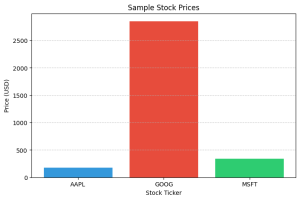
Copy the following code into the first cell of your notebook. This script uses pandas to create a simple portfolio ‘DataFrame’ and matplotlib to plot the data.
import pandas as pd
import matplotlib.pyplot as plt

# Create a sample DataFrame representing a small portfolio
data = {
    'Stock': ['AAPL', 'GOOG', 'MSFT'],
    'Price': [175.30, 2850.50, 340.88]
}
df = pd.DataFrame(data)

# Display the DataFrame
print("My First Portfolio DataFrame:")
print(df)

# Create a simple bar plot of the prices
plt.figure(figsize=(8, 5))
plt.bar(df['Stock'], df['Price'], color=['#3498db', '#e74c3c', '#2ecc71'])
plt.xlabel('Stock Ticker')
plt.ylabel('Price (USD)')
plt.title('Sample Stock Prices')
plt.grid(axis='y', linestyle='--', alpha=0.7)
plt.show()
Step-by-Step Explanation:
import pandas as pd: We import the pandas library, giving it the standard aliaspd.import matplotlib.pyplot as plt: We import thepyplotmodule from matplotlib, aliased asplt, for plotting.data = {...}: We create a Python dictionary to hold our sample portfolio data.df = pd.DataFrame(data): We pass our dictionary to the pandasDataFrameconstructor to create our main data structure.print(...): We print the DataFrame to the console.plt.figure(...)andplt.bar(...): We use matplotlib to create and customize a bar chart from our data.plt.show(): This command displays the final plot.
To run the code, simply press Shift + Enter while your cursor is in the cell.
Expected Output:
You should see the below text output directly below the cell:
My First Portfolio DataFrame:
  Stock    Price
0  AAPL   175.30
1  GOOG  2850.50
2  MSFT   340.88
And below that, you should see a bar chart:
Conclusion and Next Steps
Congratulations! You’ve successfully set up a professional quantitative analysis environment and run your first script. You now have the foundational tools used across the entire finance industry.
Now that our environment is ready, we need to learn how to represent financial concepts with code. In the next part of this series, we’ll dive into Python’s fundamental data types and control flow, but we’ll do it through the lens of a quant. You’ll learn how a simple number becomes a stock_price, a list becomes a price_history, and an if statement becomes a trading_rule.
Next Up: Part 2: Python’s Building Blocks: A Quant’s Guide to Data Types and Logic